Some ideas need a few seconds of moving picture, not a whole film: a product turning in the light, a portrait that looks up, a drone shot over a village at dusk. Image or text to video is the Booq tool for exactly that. You describe the moment, add a picture if you have one, see what will be made and what it is expected to cost, and confirm once. Nothing is charged before you press the priced button.
What it makes, and when to use the Video Studio instead
The tool makes one short clip per take. Without any image the clip is made from your words alone; with a picture to start from, the model brings that picture to life. The finished clip stays in its project and in your library, and you can make further takes of it.
For a longer film with a story, characters and many shots, use the AI Video Studio: the Video Studio guide explains it. For a still picture, read AI image generation.
What you can give it
The prompt is the only thing you must give. The images under “Images (optional)” are extras, and each one changes what the model is asked to do:
- Describe the video: what moves, how the camera moves and the mood, in any language.
- Start frame: the picture the clip begins with. Upload a JPG, PNG or WebP picture, pick one “From library”, or let Booq paint it from your prompt.
- End frame: the picture the clip finishes on, such as a closed box that ends open. It needs a start frame and a model marked “start and end frame”.
- Reference images: people, products or places the clip should keep, on models marked “reference images”.
Use only images you have the right to use: your prompt and images are checked against Booq's content rules before anything is made.
Step by step
- Open New Project and choose “Image or text to video”.
- Write what should happen under “Describe the video”.
- If you like, add a start frame, an end frame or reference images.
- Pick the model, the aspect ratio, the resolution and the length.
- Check the card “What will be made” and its estimate, then press “Generate video”.
- When the clip is ready, play it, download it or make another take.
The options and what they change
The settings show only what the chosen model offers, so changing the model can change the choices below it:
| Option | What it changes | Effect on the estimate |
|---|---|---|
| Model | The lengths, shapes, resolutions and sound on offer; grouped as “Fast drafts”, “Standard”, “Premium” and “Specialty” | Sets the price; drafts usually cost less |
| Aspect ratio | 16:9 wide, 9:16 tall or 1:1 square; your own start frame sets it, with Undo | Re-priced after every change |
| Resolution | How sharp the clip is, such as 720p or 1080p | Higher usually costs more |
| Length (seconds) | How long the clip is | Longer usually costs more |
| Native sound | Effects and ambience made by the model | Sound costs more |
| Paint it from my prompt | Booq paints the start picture for you to approve | A separately priced picture |
| Polish and translate my prompt | Rewrites your idea as a clear English prompt | A small extra, included in the estimate |
When a choice does not fit the model, such as a length it cannot make, the nearest one that does is used and the plan card lists the change in amber, so nothing changes without you seeing it.
Writing a prompt that moves
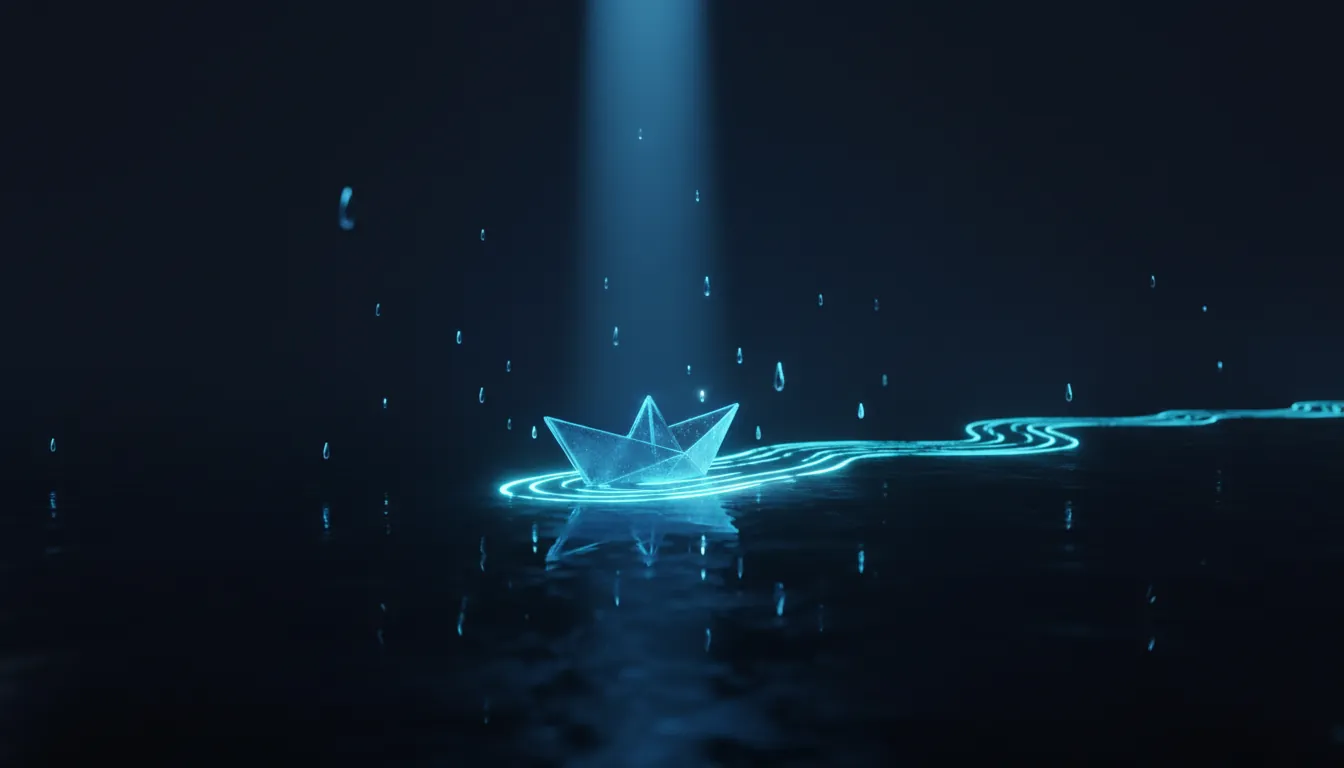
A video prompt describes a moment, not a story. “A paper boat sails down a rainy street at night, the camera follows it slowly” gives the model a subject, a movement and a camera, which is everything a short clip has room for.
- Say what moves: the subject, the light, the water, the crowd.
- Say how the camera moves: it follows, circles, rises or stays still.
- Give the mood and the light: dusk, warm windows, soft morning sun.
- With a start frame, describe the movement, not the picture: the model already holds it.
Booq adds nothing to your words but a short line naming the images the model holds, a request for natural sound when sound is on, and a line that keeps stray captions and logos out of the clip.
Polish and translate, never a silent change
With “Polish and translate my prompt” on, Booq rewrites your idea as a clear English instruction for the video model. Keep it on when you write in Persian or Arabic or in a few loose words; switch it off to send a careful English prompt as it is.
Either way, your own text stays in the project as you wrote it, and the result shows “Prompt sent to the model” with the exact words the model received. If the rewrite fails, your own words are sent and a note says so.
Start frame or reference images?
A start frame decides the first image: the model animates your picture, and the clip takes its shape. Choose it when the first image matters, such as a product shot, a portrait or a drawing.
Reference images guide a clip without a start frame, so a face, a product or a place keeps its look while the model invents the scene. With a start frame of your own the frame wins and references are not sent; with a painted start frame they guide that picture instead.
Want to approve the first image before paying for the video? Choose “Paint it from my prompt”: the first press paints only the picture, then you choose “Use this frame”, “Paint again” or “Upload instead”.
How it is billed
You pay what the clip actually costs to make. When you confirm, the estimate is reserved from your wallet, and once the clip is made the charge is settled to its real cost. How Booq charges explains the settlement, and the pricing page shows how each service is billed today.
Each paid step has its own estimate: the clip, a painted start frame, “Paint again” and every new take. Writing, uploads, the plan card and downloads cost nothing. If the price moves before you press the button, you see the new price and confirm again.
When a clip is not made
A clip that fails is refunded in full, and the page says what happened and what came back to your wallet. “Try again”, “Change settings” or “Try with” another model lead back to the priced button.
A prompt or image that breaks the content rules is blocked before anything is made, so nothing is charged, and you can appeal from the project page.
Your finished clip
The clip plays in its own shape, so a tall clip is never cropped, with “Download” and “Share” beside it. “Generate again” opens the settings pre-filled for a new take at its own price; earlier takes stay under “Previous takes”.
You can leave the page while a clip is made: a text message tells you when your project's first clip is ready. Clips count towards your storage, so download anything you want to keep for long.
What it does not do
- It makes one short clip per take, not a film with a story or many shots.
- It does not take a video or your own audio as input.
- It does not change your prompt or a setting without showing you.
- It does not refund a clip that was made but did not please you.
- It has a daily limit on paid video steps and a limit on takes per project.
Ready to try it? Open Image or text to video with its guide and start with a short clip on a “Fast drafts” model. New to Booq? The getting-started guide walks you through a first project.
Frequently asked questions
Do I need a picture to make a clip?
No. Without any image the clip is made from your words alone.
Is my prompt changed before it reaches the model?
Only when “Polish and translate my prompt” is on, and never silently: the result shows the words the model received.
What if the model refuses my photo?
Some models often refuse photos of real people, and the page warns you before you confirm. If the model refuses, nothing is made and the reserved amount comes back to your wallet in full.
Can I make as many clips as I like?
There is a daily limit on paid video steps and a limit on takes per project. The page tells you when you can continue.
Do I have to wait on the page?
No. A text message tells you when your project's first clip is ready.